
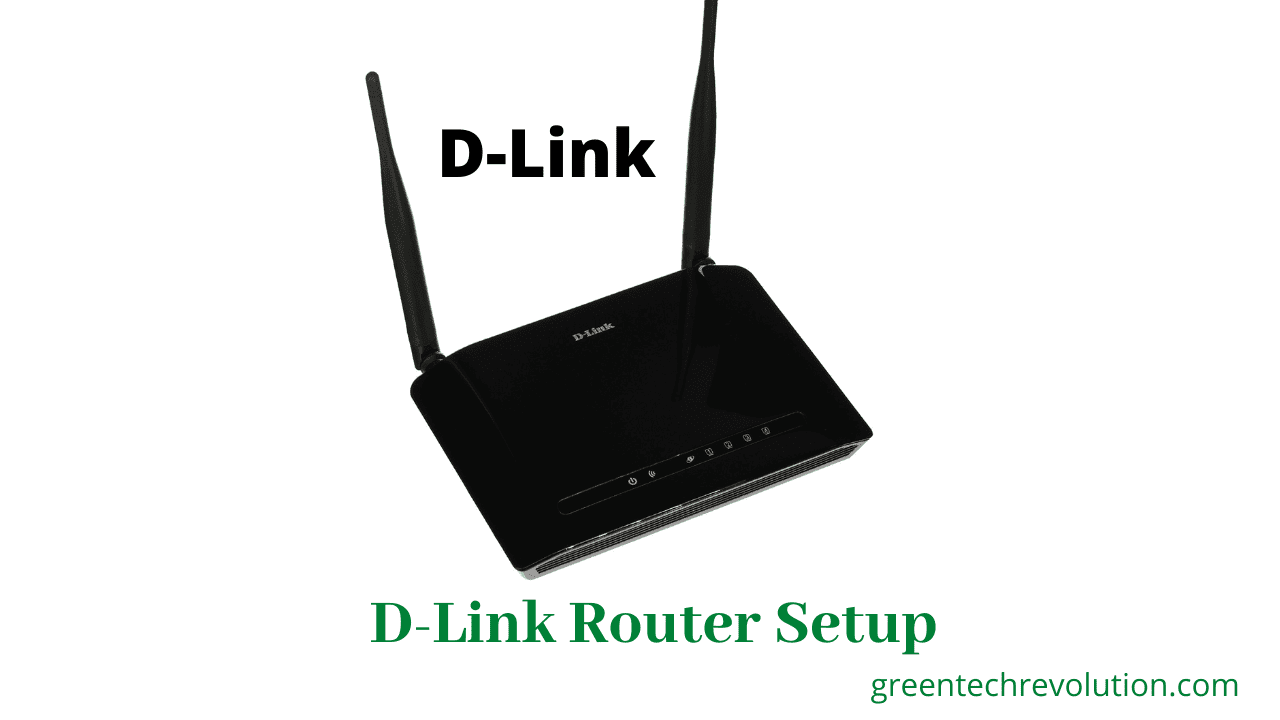
D-link router configuration step by step || D-link router setup

Published:

Updated:

Author:

D-link router configuration

If we want to create WiFi zone in home and office. I will show how will D-link router configuration. Internet service provider(ISP) has given User Name and Password and now we can configure the router.

Step1: open any browser and browse 192.168.0.1 and press user name= admin and  Password=admin
click > internet setup > WAN Access Type= select PPPoE > User name= ait.zms.bd Password=123456 > OK

wireless Configure

Step2: Click wireless > Enable SSSID > SSID=Black Dimond > Mode=bgn > Pre-shared key =dimondworld > OK

Now we can use WiFi.


 

Leave a Reply

Blog Posts

  • How to disable AP isolation on TP-Link router

    How to Disable AP Isolation on Your TP-Link Router: A Step-by-Step Guide Recommended Product: TP-Link ER605 V2 Wired Gigabit VPN Router, Up to 3 WAN Ethernet Ports + 1 USB WAN, SPI Firewall SMB Router, Omada SDN Integrated, Load Balance, Lightning Protection Are you having trouble connecting devices to your TP-Link router’s Wi-Fi network? Is

    Read more

  • How to Connect Xfinity WiFi Modem

    How to Connect Your Xfinity WiFi Modem: A Step-by-Step Guide Recommended Product: NETGEAR Nighthawk Multi-Gig Cable Modem for Xfinity Voice (CM2050V) – for Cable Plans up to 2.5Gbps – DOCSIS 3.1-2 Phone Lines Getting your Xfinity WiFi modem up and running shouldn’t be a headache. This guide provides a clear, step-by-step process to help you

    Read more

  • How to Connect WiFi Router to Laptop Without Ethernet Cable

    Connecting Your WiFi Router to Your Laptop Without an Ethernet Cable: A Step-by-Step Guide Recommended Product: Ethernet LAN to WiFi Bridge Universal Wireless Adapter for PS4, Xbox, Printer, Smart TV, Blu-Ray Player, Game Console, 2.4GHZ RJ45 Cable Extender Tired of tangled Ethernet cables? Want to enjoy the freedom of wireless connectivity? Connecting your laptop to

    Read more
