
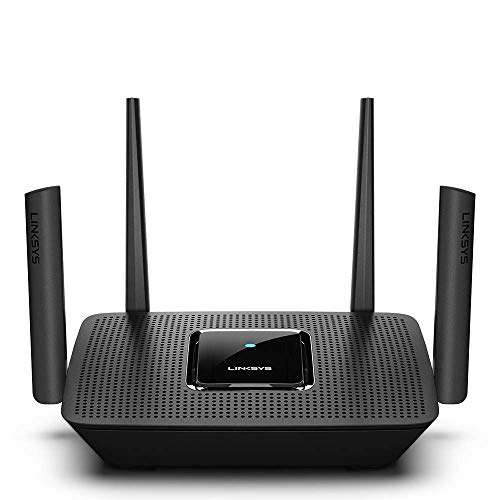
How to Disable Linksys Smart Wi-Fi: A Step-by-Step Guide
Are you experiencing issues with your Linksys Smart Wi-Fi and want to disable it? Perhaps you’re troubleshooting connectivity problems, switching to a different router management system, or simply prefer a more streamlined setup. Whatever the reason, disabling Linksys Smart Wi-Fi is simpler than you might think. This guide provides a clear, step-by-step process to help you successfully disable the Smart Wi-Fi features and regain control of your network.
Before You Begin:
- Know your router’s IP address: You’ll need this to access your router’s administration page. This is often found on a sticker on the router itself or in your router’s manual. Common addresses include 192.168.1.1 and 192.168.0.1.
- Have your router’s login credentials ready: You’ll need your username and password to access the administrative interface. The default credentials are often found on the router’s sticker or in the manual. If you’ve changed them, make sure you remember the new ones!
- A stable internet connection: Ensure your computer or device is connected to your router’s network.
Step-by-Step Instructions:
Recommended Product:
- Access your router’s administration page: Open your web browser and enter your router’s IP address in the address bar. Press Enter.
- Log in: Enter your username and password. If you’ve forgotten your credentials, you may need to reset your router to factory settings (this will erase all custom settings). Consult your router’s manual for instructions on how to perform a factory reset.
- Navigate to the Smart Wi-Fi settings: The exact location of these settings will vary depending on your Linksys router model and firmware version. However, look for sections labeled “Smart Wi-Fi,” “Smart Connect,” “Wireless,” or similar. You might need to explore various menus to find the appropriate section. Use the search function if your router’s interface provides one.
- Disable Smart Wi-Fi features: Once you’ve located the Smart Wi-Fi settings, look for options to disable specific features. This might include turning off Smart Connect (which combines 2.4GHz and 5GHz bands) or disabling other features like parental controls or guest networks if you’re completely disabling the smart features. The exact options will depend on your router’s capabilities. Simply toggle the relevant switches to “Off” or uncheck the boxes.
- Save your changes: Once you’ve made all the desired changes, look for a “Save,” “Apply,” or “Submit” button and click it. This is crucial; otherwise, your changes won’t take effect.
- Reboot your router (recommended): After saving the changes, it’s best practice to reboot your router. This ensures that all the changes are implemented correctly and helps prevent any potential conflicts. Unplug the power cord from your router, wait for about 30 seconds, and then plug it back in.
Tips and Troubleshooting:
- If you’re unsure about a setting, don’t change it. It’s better to leave things as they are than to accidentally disrupt your network functionality.
- Take screenshots before making changes. This helps you revert to previous settings if you encounter problems.
- Consult your router’s manual: If you encounter difficulties, the manual is your best resource. It provides detailed information about your router’s features and settings.
- If you’re still experiencing issues after disabling Smart Wi-Fi, consider contacting Linksys support. They can help you troubleshoot more complex problems.
Common Mistakes to Avoid:
- Forgetting to save changes: This is the most common mistake. Always save your settings after making any modifications.
- Incorrect login credentials: Double-check your username and password to avoid being locked out of your router’s administration page.
- Not rebooting the router: Rebooting is essential for applying changes effectively.
- Making unnecessary changes: Only change the settings you need to disable Smart Wi-Fi; leaving other settings unchanged avoids accidental disruptions.
By following these steps and avoiding the common mistakes, you should be able to successfully disable Linksys Smart Wi-Fi and manage your network according to your preferences. Remember, patience and careful attention to detail are key to a successful outcome.
FAQ
Q. How do I completely disable the Linksys Smart Wi-Fi features on my router?
A. Completely disabling all Linksys Smart Wi-Fi features usually involves resetting your router to factory defaults. This will erase any custom settings you’ve made, including the Smart Wi-Fi profile. To do this, locate the reset button (often a small pinhole) on your router, and press and hold it for 10-30 seconds (check your router’s manual for the exact time). This process removes all Linksys app functionality. However, note that some basic router functions may still operate.
Q. Can I disable specific features of Linksys Smart Wi-Fi without a full reset?
A. You might be able to disable some individual features through the Linksys app interface. The availability of specific controls varies depending on your router model and firmware version. Check the app’s settings menus for options related to parental controls, guest networks, traffic prioritization, or other Smart Wi-Fi services. Disabling these individually won’t remove the core Smart Wi-Fi functionality but will limit its impact.
Q. Will disabling Linksys Smart Wi-Fi affect my internet connection?
A. Disabling Smart Wi-Fi features should not directly affect your primary internet connection provided by your ISP. Your router will still function as a basic router, connecting to your modem and distributing the internet signal. However, features like automatic firmware updates will be deactivated.
Q. After disabling Linksys Smart Wi-Fi, can I still access my router’s settings through a web browser?
A. Yes. Even after disabling Linksys Smart Wi-Fi features, you can still access your router’s administration interface through a web browser by typing your router’s IP address (usually 192.168.1.1 or 192.168.0.1, check your router’s manual) into the address bar. You will need to use the administrator username and password.
Q. I’ve reset my router, but some Linksys Smart Wi-Fi features seem to remain. What should I do?
A. If a factory reset doesn’t completely remove all traces of the Smart Wi-Fi functionality, try these steps: Check for firmware updates through the router’s web interface; sometimes newer firmware improves the factory reset process. If the issue persists, contact Linksys support directly for further assistance. They may have more specific troubleshooting steps for your router model.
Q. My Linksys router is not connecting to the Linksys app. Can I still disable Smart Wifi features?
A. If you can’t connect to the Linksys app, you can still attempt to disable some Smart Wi-Fi features through the router’s web interface, but you will have limited control. The ability to manage settings through the web interface depends on the model. A factory reset via the physical reset button on the router is still an effective way to disable Smart Wifi functionality.
Q. Is it safe to completely disable Linksys Smart Wi-Fi?
A. Disabling Linksys Smart Wi-Fi is generally safe and will not harm your router or network. You will lose features like remote management and some advanced security settings. However, your basic internet connectivity will remain functional. The decision to disable Smart Wi-Fi depends on your preferences and security needs.
Related Articles
How Can I Boost My Spectrum Wifi Signal
How Can I Boost My Spectrum Wifi Signal? A Step-by-Step Guide Recommended Product: Mini Cell Signal Booster for Verizon, AT&T, T-Mobile| Up to 150…
Can You Use A Dstv Dish For Internet
Can You Use Your DStv Dish for Internet? Unlocking the Potential of Your Satellite Dish Recommended Product: Dish Network 1000.2 Dish 110, 119, 129 Sa…
What is the Best WiFi Router for Streaming
Streaming is basically a way of live now, right? Whether you’re glued to a 4K movie marathon, hopping on a video call, or battling it out in an online…




Leave a Reply
You must be logged in to post a comment.