
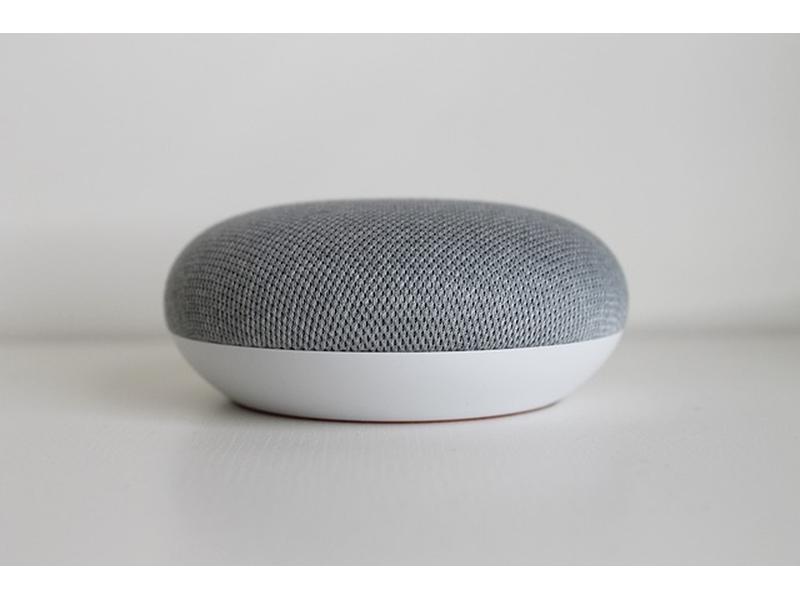
Need to connect your Google Home to a new Wi-Fi network? You can switch your device’s Wi-Fi in just a few steps using the Google Home app. Whether you’ve changed your router or moved to a new place, updating your Google Home’s connection doesn’t have to be complicated. Follow this quick guide to get your device back online and working smoothly in minutes.
How Do I Change the Wi-Fi on My Google Home Quickly and Easily?
Understanding Why You Might Need to Change Wi-Fi on Google Home
Changing the Wi-Fi network on your Google Home becomes necessary in several situations. You might have switched to a new internet provider, upgraded your router, or moved to a different home. Sometimes, Wi-Fi issues require connecting your Google Home to a different network for better performance. Whatever the reason, knowing how to change the Wi-Fi on your Google Home efficiently saves time and keeps your smart speaker running smoothly.
Things to Check Before Changing Wi-Fi on Google Home
- Ensure your new Wi-Fi network is active: Confirm that your new Wi-Fi is up and running. Test the connection on your phone or laptop first.
- Keep your Google Home plugged in: The device must stay powered during the process.
- Use the latest version of the Google Home app: Update the app on your Android or iOS device to avoid compatibility issues.
- Stay near your Google Home: Remain close to your device for a stable Bluetooth and Wi-Fi connection during setup.
Step-by-Step Guide: How Do I Change the Wi-Fi on My Google Home
Changing the Wi-Fi on any Google Home device follows a similar process. Whether you have a Google Home, Google Nest Mini, or Google Nest Hub, these steps apply.
1. Open the Google Home App
- On your smartphone or tablet, locate and open the Google Home app.
- Make sure your device is connected to the same Wi-Fi network your Google Home is currently using, or is able to connect to the new one if the old network is unavailable.
2. Select Your Google Home Device
- In the Google Home app, you will see a list of connected devices.
- Tap on the Google Home device you want to update.
3. Access Device Settings
- Tap the gear icon in the top-right corner to open settings for your selected device.
4. Remove the Old Wi-Fi Network
- Scroll down to the “Wi-Fi” section in the device settings.
- Tap Forget or Remove to disconnect your Google Home from the current Wi-Fi network.
- Your Google Home will go into setup mode. You may see a blinking light or hear a sound indicating it is ready for setup.
5. Reconnect to the New Wi-Fi Network
- Go back to the main screen of the Google Home app.
- Tap the + (plus) icon in the top left.
- Select Set up device > New device and choose your home.
- The app will search for nearby Google Home devices in setup mode. Select yours from the list.
- Follow the on-screen prompts. When asked, choose your new Wi-Fi network and enter the password.
- Wait while your device connects. You will see a confirmation message when the process completes.
6. Test the Connection
- Try a voice command like “Hey Google, what’s the weather?” to confirm your Google Home is online.
- If the device responds, the Wi-Fi change was successful.
How to Change Wi-Fi on Google Home Without the Old Network
If you no longer have access to the old Wi-Fi network, your Google Home will not connect automatically. In this case, you must reset your device and set it up from scratch.
Resetting Your Google Home Device
- Google Home: Press and hold the microphone mute button for about 15 seconds.
- Google Home Mini: Press and hold the factory reset button (located below the power cord) for about 15 seconds.
- Google Nest Mini: Turn off the microphone switch, then press and hold the center of the device for 15 seconds.
- Google Home Max: Press and hold the factory reset button near the power cord for 15 seconds.
- Google Nest Hub: Hold both volume buttons on the back for 10 seconds.
After resetting, your Google Home will be ready to set up as if it were brand new. Open the Google Home app and follow the steps listed above to connect to your new Wi-Fi network.
Troubleshooting Wi-Fi Change Issues on Google Home
Sometimes, things do not go as planned. Here are common issues and solutions when changing Wi-Fi on your Google Home.
- Device Not Appearing in Setup: Make sure your phone’s Bluetooth is on and you are near your Google Home. Restart both your phone and the Google Home device if necessary.
- Cannot Connect to New Wi-Fi: Double-check the Wi-Fi password and ensure your network is working properly. Try restarting your router.
- Google Home Not Responding After Setup: Unplug the device, wait 10 seconds, and plug it back in. This simple reset often fixes connectivity issues.
- App Crashes or Freezes: Update the Google Home app or reinstall it from the App Store or Google Play.
- Wi-Fi Network Not Showing: Ensure your router broadcasts the Wi-Fi network’s SSID (name) and is not hidden. Also, check that your network uses a supported frequency (2.4GHz or 5GHz).
Tips for a Smooth Wi-Fi Change on Google Home
- Use a strong Wi-Fi signal: Place your Google Home close to your router during setup.
- Keep your phone updated: The latest OS and app versions reduce compatibility issues.
- Write down your Wi-Fi password: Have it handy to avoid delays during setup.
- Avoid public or enterprise Wi-Fi: Google Home requires a private network with a visible SSID and password.
- Assign a clear name to your Google Home: This helps you identify it during setup, especially if you have multiple devices.
Changing Wi-Fi on Multiple Google Home Devices
If you have several Google Home speakers or displays, repeat the process for each device. Unfortunately, there is no bulk option; you must update each device individually using the Google Home app.
- Set up one device at a time: Complete the process for each Google Home before moving to the next.
- Label your devices: Use specific room names in the app to simplify identification.
- Store all devices in the same room during setup: This helps maintain a strong Wi-Fi connection and speeds up the process.
Stay Secure When Changing Wi-Fi on Google Home
- Choose a secure Wi-Fi password: Protect your smart home devices from unauthorized access.
- Update your Google account password regularly: This keeps your devices linked to a secure account.
- Enable two-factor authentication on your Google account: This adds an extra layer of security to your smart home setup.
Updating Wi-Fi Settings Without Resetting Google Home
If you still have access to the old Wi-Fi network, you can update your Google Home’s Wi-Fi without a factory reset. Use the settings in the Google Home app to make the switch seamlessly, following the steps outlined above. This method keeps all your previous settings, voice matches, and routines intact.
When to Reset Your Google Home
- You lost access to the old Wi-Fi network: A reset is necessary to establish a new connection.
- You’re giving away or selling your device: A factory reset clears your personal information.
- Your device is unresponsive or has persistent issues: Resetting often resolves connectivity or performance problems.
Special Considerations for Google Home Wi-Fi Setup
- Dual-band routers: Google Home supports both 2.4GHz and 5GHz networks. Choose the band that offers the best coverage in your home.
- Mesh Wi-Fi systems: If you use a mesh system, ensure your phone and Google Home connect to the same node during setup.
- Guest networks: Avoid using guest networks for your Google Home, as they may block device discovery and features.
Common Mistakes to Avoid When Changing Wi-Fi on Google Home
- Forgetting to update routines and integrations: If you change Wi-Fi, some third-party integrations may require reauthorization.
- Disconnecting during setup: Keep your Google Home powered and your app open until setup is complete.
- Using a hidden SSID: Google Home may struggle to connect to Wi-Fi networks that do not broadcast their name.
- Entering the wrong Wi-Fi password: Double-check your information to avoid setup failures.
- Placing the device too far from the router: Keep your Google Home close to the router during Wi-Fi setup for a stronger signal.
How Changing Wi-Fi Impacts Google Home Features
When you change your Google Home’s Wi-Fi, all features remain available as long as the device connects successfully. Some features, like multi-room audio, require that all devices are on the same Wi-Fi network. If you have smart lights, plugs, or other accessories linked to Google Home, ensure they are also updated to the same network for seamless operation.
Summary Table: Steps to Change Wi-Fi on Google Home
| Step | Action |
|---|---|
| 1 | Open Google Home app |
| 2 | Select your device |
| 3 | Go to device settings |
| 4 | Remove old Wi-Fi network |
| 5 | Set up new Wi-Fi connection |
| 6 | Test the connection |
Best Practices After Changing Wi-Fi on Google Home
- Re-link your smart home devices: If any accessories disconnect, re-add them in the Google Home app.
- Check for software updates: Keeping your Google Home firmware up to date ensures the best performance.
- Review device settings: Confirm your routines, alarms, and preferences remain as you want them.
- Ensure voice match is still enabled: If voice recognition stops working, re-train the Google Assistant.
Why the Google Home App Is Essential for Wi-Fi Changes
The Google Home app is the central hub for managing all your Google smart devices. Without the app, you cannot update Wi-Fi settings, add new devices, or customize your home setup. Always keep the app installed and updated on your phone or tablet for smooth operation.
“`
How to change Wi-Fi Networks of your Google Nest devices
Frequently Asked Questions
How do I change the Wi-Fi network on my Google Home?
To change the Wi-Fi network, open the Google Home app on your phone, select your Google Home device, tap the gear icon for settings, choose “Wi-Fi,” then tap “Forget this network.” Afterward, reconnect your device to the new Wi-Fi by following the setup prompts in the app.
Do I need to reset my Google Home to switch Wi-Fi networks?
You don’t need a factory reset, but you must disconnect your device from the old network. Use the Google Home app to forget the current Wi-Fi, then set up the device on the new network.
What should I do if my Google Home won’t connect to a new Wi-Fi?
First, check that your phone is connected to the correct Wi-Fi and that the network is working. Restart your router and Google Home, then retry the setup. If it still doesn’t connect, try resetting your Google Home and start the setup again.
Will changing Wi-Fi on my Google Home affect my routines and settings?
Changing the Wi-Fi network won’t erase your routines, preferences, or linked accounts. However, you need to reconnect your device to the app, and some automations may require reauthorization if they use specific network devices.
Can I change the Wi-Fi on Google Home without the app?
No, you need the Google Home app to change Wi-Fi settings. There is no option to switch Wi-Fi directly from the device itself.
Final Thoughts
To quickly change the Wi-Fi on your Google Home, open the Google Home app, select your device, and update the network settings by following the prompts. If you ever wonder, “how do I change the Wi-Fi on my Google Home,” these simple steps will help you reconnect without hassle and keep your smart device running smoothly.




Leave a Reply
You must be logged in to post a comment.