
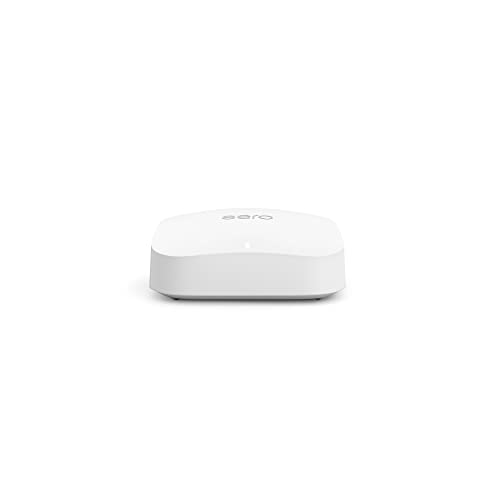
Can Eero and Eero Pro Work Together? A Seamless Mesh Network Guide
Recommended Product:
Creating a robust and reliable home Wi-Fi network is crucial in today’s digital world. Many homeowners opt for mesh Wi-Fi systems for their superior coverage and ease of use. If you’re considering a mesh network using Eero devices, you might be wondering: can Eero and Eero Pro work together? The answer is a resounding yes! In fact, combining different Eero generations or models can significantly enhance your network’s performance and reach. This guide will walk you through how to seamlessly integrate Eero and Eero Pro devices for optimal home Wi-Fi coverage.
Understanding the Benefits of Mixing Eero and Eero Pro
While both Eero and Eero Pro offer excellent Wi-Fi performance, their capabilities differ slightly. Combining them leverages the strengths of each. For example, you might place an Eero Pro in a high-traffic area requiring maximum speed and bandwidth, while using standard Eero units in areas with lower demands. This approach allows you to optimize your network’s performance and cost-effectiveness. You get the best of both worlds: strong signal reach from multiple nodes, and high-speed capacity in areas requiring it.
Setting Up Your Combined Eero Network: A Step-by-Step Guide
Setting up a mixed Eero network is surprisingly straightforward. The key is to follow the Eero app’s instructions closely. Here’s a general overview:
- Ensure your Eero devices are updated: Before starting, make sure both your Eero and Eero Pro units have the latest firmware updates installed. This is crucial for optimal compatibility and performance. Check the Eero app for updates.
- Start with the main node: Begin by setting up your primary Eero device (either Eero or Eero Pro). Follow the instructions in the Eero app. This usually involves connecting the device to your modem and powering it on.
- Add additional nodes: Once your primary node is online and configured, the Eero app will guide you through adding the remaining Eero and Eero Pro units. This usually involves plugging in the new nodes and following the in-app instructions. Place the nodes strategically for optimal signal coverage throughout your home, minimizing dead zones. Avoid placing nodes too far apart.
- Monitor the network: After adding all your nodes, use the Eero app to monitor the network’s performance. The app will show you the signal strength of each node and the overall network health. This helps you identify and troubleshoot any potential issues.
Recommended Product:
Tips for Optimal Performance
- Strategic Placement: Proper placement of your Eero nodes is paramount. Avoid placing them in corners or behind obstructions. Ideally, place them centrally in each area you want to cover. Experiment to find the optimal placement for your home’s layout.
- Ethernet Connections: Whenever possible, connect your Eero nodes to your modem and other nodes using Ethernet cables. This provides a much more stable and faster connection than Wi-Fi.
- Regular Maintenance: Regularly check the Eero app for updates and network performance. This proactive approach can prevent issues before they arise. A healthy network ensures consistent high-speed internet throughout your home.
Common Mistakes to Avoid
- Ignoring the App: Don’t try to configure your Eero network without using the app. The app is essential for setup and management.
- Poor Node Placement: Failing to strategically place your Eero nodes is the most common mistake. This results in weak signal strength and dead zones.
- Ignoring Firmware Updates: Keeping your Eero firmware up-to-date is vital for optimal performance and security. Regularly check for updates in the Eero app.
- Overlooking Ethernet Connections: Relying solely on Wi-Fi connections between nodes can negatively impact the network’s performance and stability. Prioritize wired connections whenever possible.
By following these steps and tips, you can successfully create a powerful and reliable mesh network using a combination of Eero and Eero Pro devices. Remember, a well-configured mesh network provides seamless Wi-Fi coverage throughout your entire home, eliminating frustrating dead zones and ensuring reliable high-speed internet access for all your devices.
Recommended Product:
FAQ
Q. Can I use eero and eero Pro 6 mesh WiFi systems together in the same network?
A. Yes, you can absolutely combine eero and eero Pro 6 (or other eero Pro generations) in a single mesh network. The Pro models generally offer better performance and coverage due to their more powerful hardware, but they work seamlessly with standard eero devices.
Q. Will mixing eero and eero Pro devices impact my network speed?
A. While the eero Pro will offer faster speeds in areas directly connected to it, mixing models shouldn’t significantly reduce overall network speed. The system will intelligently route traffic to optimize performance based on each node’s capabilities. You might experience slightly slower speeds in areas further away from the Pro units, but this is usually a minor difference.
Q. Is there a benefit to using both eero and eero Pro devices?
A. Yes. Strategically placing eero Pro devices in areas requiring greater coverage or higher bandwidth, like a home theater or gaming room, can significantly improve performance in those specific locations. Using standard eero units in less demanding areas can be a cost-effective way to extend your network’s reach.
Q. Do I need to have a certain number of each type of eero device to make them work together?
A. No, there’s no required ratio of eero to eero Pro units. You can use any combination that suits your home’s layout and your needs. You can start with one Pro and add standard eeros later, or vice versa.
Q. Will using different eero models affect my network’s management through the eero app?
A. No. The eero app manages all eero and eero Pro devices within the network uniformly. You’ll see a single, unified network and have access to the same control features for all nodes, regardless of model.
Q. If I have an older eero model, can I still use it with a newer eero Pro?
A. Generally yes, provided your older eero model is supported by the latest eero app. However, functionality may be limited depending on the age of the older model. It’s always recommended to check eero’s compatibility information to ensure your older device will work properly before adding it to a mesh network with newer Pro models.
Related Articles
How Can I Boost My Spectrum Wifi Signal
How Can I Boost My Spectrum Wifi Signal? A Step-by-Step Guide Recommended Product: Mini Cell Signal Booster for Verizon, AT&T, T-Mobile| Up to 150…
Can You Use A Dstv Dish For Internet
Can You Use Your DStv Dish for Internet? Unlocking the Potential of Your Satellite Dish Recommended Product: Dish Network 1000.2 Dish 110, 119, 129 Sa…
What is the Best WiFi Router for Streaming
Streaming is basically a way of live now, right? Whether you’re glued to a 4K movie marathon, hopping on a video call, or battling it out in an online…




Leave a Reply
You must be logged in to post a comment.