
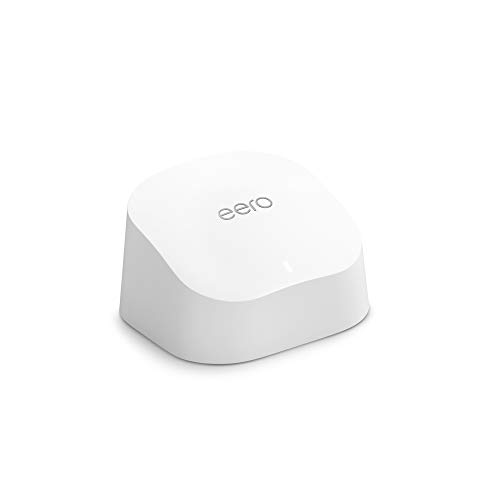
Can an eero 6 Router Be Used as an Extender? A Comprehensive Guide
Recommended Product:
Want to boost your Wi-Fi signal and expand your network coverage? You might be wondering if your eero 6 router can double as a Wi-Fi extender. The short answer is: yes, but not directly. eero devices work best as part of a mesh network, not as standalone extenders. This article will explain how to effectively use your eero 6 to expand your network range, avoiding common pitfalls along the way.
Understanding the Difference: Extender vs. Mesh Network
A traditional Wi-Fi extender connects to your existing router’s signal and rebroadcasts it. This method often leads to slower speeds and more complex network management. eero 6, however, is designed to be part of a mesh network. A mesh network creates a single, unified Wi-Fi network across multiple nodes. This results in faster speeds, seamless roaming, and better overall performance. Essentially, you’re not extending the signal in the traditional sense, but rather creating a more robust and expansive network.
How to Use Your eero 6 for Expanded Coverage:
To effectively expand your Wi-Fi coverage with an eero 6, you need to add it to your existing eero network as a node, not use it as a standalone extender. Here’s a step-by-step guide:
- Ensure your eero network is set up: If you don’t already have an eero network, you’ll need to start with the primary eero router. Follow the instructions provided with your initial eero device.
Recommended Product:
- Connect your eero 6 to power: Plug your eero 6 node into a power outlet within range of your existing eero network. Ideally, place it in a location that’s roughly halfway between your main router and the area with weak Wi-Fi.
- Open the eero app: Launch the eero app on your smartphone or tablet. The app should automatically detect your new eero 6 node.
- Follow the in-app instructions: The eero app will guide you through the process of adding the eero 6 to your network. This typically involves confirming the device and assigning it a location in your home. The app will handle the complex networking configurations automatically.
- Patience is key: Allow a few minutes for the eero 6 to integrate fully into your network. Once complete, you should see the new node appear on the app’s network map.
Tips for Optimal Performance:
- Placement is crucial: Strategically position your eero 6 node for optimal coverage. Avoid placing it in areas with physical obstructions (walls, furniture) or sources of interference (microwaves, cordless phones).
- Use the eero app: The app provides valuable insights into your network’s performance and helps you troubleshoot any connection issues. Regularly check it for updates and alerts.
- Keep your firmware updated: Regular firmware updates enhance performance, security, and add new features. Ensure your eero devices are always running the latest firmware.
- Ethernet backhaul: If possible, connect your eero 6 node to your main router (or another eero node) via Ethernet cable. This provides a more stable and faster connection between nodes, significantly improving overall network performance.
Common Mistakes to Avoid:
- Using the eero 6 as a standalone extender: This won’t work properly and will likely result in poor performance. Always add it to your existing eero mesh network.
- Ignoring placement: Poor placement can significantly impact network coverage and speed. Take the time to find the best location for each eero node.
- Neglecting firmware updates: Outdated firmware can introduce vulnerabilities and reduce performance. Prioritize keeping your firmware up-to-date.
By following these instructions and tips, you can effectively utilize your eero 6 to expand your Wi-Fi coverage and enjoy a seamless, high-performance network throughout your home. Remember, a properly configured mesh network with eero devices is far superior to using a single router with a traditional extender.
Recommended Product:
FAQ
Q. Can I use my eero 6 router as a single extender?
A. No, eero 6 devices are designed to work together as a mesh network. While you can’t use a single eero 6 as a standalone extender in the way a traditional Wi-Fi extender works, adding it to your existing eero network will extend your Wi-Fi coverage. You need at least two eero devices to form a mesh network.
Q. Can I use an eero 6 as an extender with my existing non-eero router?
A. No, eero 6 devices are optimized to work within the eero mesh system. They won’t function properly as extenders for a different brand’s router. You need to either replace your existing router with an eero 6 system or incorporate the eero 6 into a new eero mesh network.
Q. If I have an eero 6 system, can I add a single eero 6 device later to extend coverage?
A. Yes. Adding an additional eero 6 device to your existing eero 6 system will extend the Wi-Fi coverage. This is the intended method for expanding the network. The eero app will guide you through the process.
Q. Will adding an eero 6 as an extender improve my Wi-Fi speed?
A. Adding an eero 6 to your existing eero network will likely improve Wi-Fi coverage in areas that were previously weak, leading to better signal strength and potentially improved speeds in those areas. However, it won’t necessarily increase your overall internet speed provided by your ISP.
Q. What are the limitations of using multiple eero 6 devices to extend coverage?
A. While adding eero 6 devices effectively extends coverage, remember that each additional device introduces a small amount of latency (though usually imperceptible). Also, the farther away a device is from your gateway, the weaker the signal may become. Plan your placement carefully to maximize coverage and minimize latency.
Q. My existing eero system isn’t eero 6. Can I add an eero 6 to it?
A. Yes, you can generally add eero 6 devices to an existing eero system that uses earlier generations of eero devices. The eero app will handle the integration, providing a single, unified network. However, your network will operate at the lowest common capabilities of all the eero devices in the system. For optimal performance, it’s recommended to eventually upgrade your whole system to eero 6.
Related Articles
How Can I Boost My Spectrum Wifi Signal
How Can I Boost My Spectrum Wifi Signal? A Step-by-Step Guide Recommended Product: Mini Cell Signal Booster for Verizon, AT&T, T-Mobile| Up to 150…
Can You Use A Dstv Dish For Internet
Can You Use Your DStv Dish for Internet? Unlocking the Potential of Your Satellite Dish Recommended Product: Dish Network 1000.2 Dish 110, 119, 129 Sa…
What is the Best WiFi Router for Streaming
Streaming is basically a way of live now, right? Whether you’re glued to a 4K movie marathon, hopping on a video call, or battling it out in an online…




Leave a Reply
You must be logged in to post a comment.