
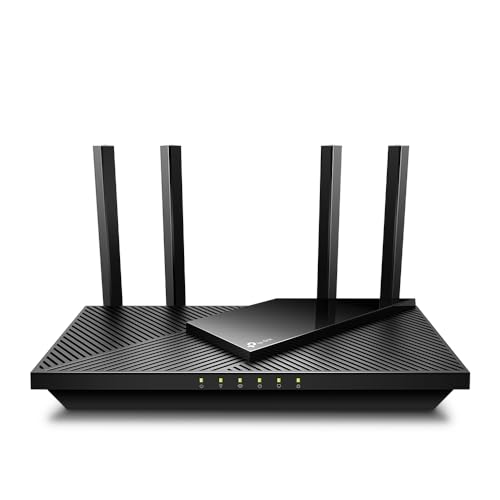
Ever feel like your internet connection is playing hide-and-seek? You pay for fast speeds, but your Wi-Fi still struggles in certain rooms. Often, the culprit isn’t your internet service provider or even an old router; it’s simply where your router is placed! Finding the best position for wifi router can drastically improve your signal strength, eliminate dead zones, and deliver the speedy connection you deserve throughout your home.
Think of your Wi-Fi signal like a light bulb: its reach is affected by its placement and what’s in its way. A few simple adjustments can kick your Wi-Fi into high gear, transforming your online experience from frustrating to fantastic. In this comprehensive guide, we’ll dive into the top tips for optimal router placement and review some excellent routers that can help you achieve peak performance.
Finding the Sweet Spot: The Best Position for Your WiFi Router
Getting the best position for wifi router is more art than science, but these tried-and-true tips will give you a significant advantage in boosting your home’s wireless coverage and overall Wi-Fi signal strength.
1. Centralize Your Router
Your Wi-Fi signal radiates outwards, much like ripples in a pond. To get the most even coverage across your home, place your router in a central location. Avoid tucking it away in a corner or at one end of the house if you want the signal to reach every room effectively. A living room or a central hallway is often an ideal spot.
2. Elevate It
Wi-Fi signals tend to broadcast downwards. To maximize your wireless coverage, try to place your router on a higher shelf, on top of a cabinet, or even mount it high on a wall. Getting it off the floor and away from dense objects can make a world of difference. The ideal height is usually about half the wall height of the room, or even higher.
3. Avoid Obstacles and Interference
Many common household items can act as signal blockers or sources of interference. Thick walls (especially concrete or brick), large metal objects (appliances, filing cabinets, even mirrors), and even water (fish tanks!) can degrade your Wi-Fi signal. Try to keep your router clear of these obstacles. Other electronics like cordless phones, microwaves, and baby monitors also operate on similar frequencies and can cause interference. Keep your router away from them.
4. Adjust Antennas for Optimal Signal Direction
If your router has adjustable external antennas, don’t just point them all in the same direction. For multi-story homes, try pointing some horizontally and others vertically to spread the signal more effectively. For single-story homes, orient them to cover the broadest area. Experiment to find what works best for your specific layout.
5. Keep it Away from Other Electronics
While it’s convenient to place your router next to your TV or computer, these devices can emit electromagnetic waves that interfere with your Wi-Fi. Give your router a bit of breathing room – at least a few feet away from other large electronics – to minimize potential signal disruption.
6. Consider a Mesh WiFi System for Larger Homes
For very large homes, multi-story houses, or layouts with many signal-blocking walls, a single router, no matter how perfectly placed, might not be enough. A Mesh WiFi system uses multiple nodes placed strategically around your home to create a unified, strong wireless network, effectively eliminating dead zones and providing seamless coverage.
7. Regularly Update Firmware and Reboot
This isn’t a placement tip, but it’s crucial for optimal performance! Router manufacturers frequently release firmware updates to improve performance and security. Check for these updates periodically. Also, giving your router a quick reboot every now and then (unplugging it for 30 seconds and plugging it back in) can clear minor glitches and refresh its performance.
Top WiFi Routers to Boost Your Network Performance
Once you’ve nailed down the best position for wifi router, it’s time to ensure you have a router capable of delivering a strong signal. Here are 7 excellent options that combine performance, features, and reliability to supercharge your home network.
TP-Link AX1800 WiFi 6 Router V4 (Archer AX21) – Dual…

This TP-Link Archer AX21 V4 is a fantastic entry point into the world of Wi-Fi 6, offering a significant upgrade for most homes. What makes it stand out is its balance of speed, coverage, and advanced features like a VPN server, making it a versatile choice for users looking for more than just basic connectivity. With Wi-Fi 6 technology, you’ll experience faster speeds, greater capacity for multiple devices, and reduced network congestion, ensuring smoother streaming, gaming, and downloading across your entire network.
- VPN SERVER: Supports both Open VPN Server and PPTP VPN Server
- DUAL-BAND WIFI 6 ROUTER: Wi-Fi 6 (802.11ax) technology for faster speeds and greater capacity
- AX1800: Up to 1.8 Gbps total bandwidth (1200 Mbps on 5 GHz, 574 Mbps on 2.4 GHz)
- CONNECT MORE DEVICES: OFDMA technology allows more data to more devices simultaneously
- EXTENSIVE COVERAGE: Beamforming, 4 high-gain antennas, and advanced FEM chipset
- OUR CYBERSECURITY COMMITMENT: TP-Link is a signatory of CISA’s Secure-by-Design pledge
- WORKS WITH ALL INTERNET SERVICE PROVIDERS: Compatible with major ISPs
- Pros:
- Excellent value for Wi-Fi 6 capabilities
- Built-in VPN server adds great utility and security
- Strong coverage thanks to beamforming and multiple antennas
- Supports a high number of connected devices efficiently
- Easy setup and management via Tether app
- Cons:
- Not the fastest Wi-Fi 6 router available (AX1800 is entry-level Wi-Fi 6)
- Dual-band only, no 6 GHz band support
User Impressions: Users frequently praise the Archer AX21 for its easy setup and noticeable improvement in Wi-Fi speed and stability compared to older AC routers. Many appreciate the robust signal and the added security features like the VPN server, making it a popular choice for home offices and busy households.
See it on Amazon Here
TP-Link AC1200 WiFi Router (Archer A54) – Dual Band…

The TP-Link Archer A54 is an ideal and budget-friendly solution for those needing a reliable dual-band router without breaking the bank. Its standout feature is its EasyMesh compatibility, which allows you to seamlessly expand your Wi-Fi coverage by pairing it with other EasyMesh-compatible devices, making it a flexible option for growing homes or tackling stubborn dead zones. It offers stable performance for everyday tasks like browsing, streaming, and online gaming.
- Simultaneous 2.4GHz 300 Mbps and 5GHz 867 Mbps connections for 1200 Mbps total bandwidth
- 4 external antennas provide stable wireless connections and optimal coverage
- Supports IGMP Proxy/Snooping, Bridge and Tag VLAN to optimize IPTV streaming
- Access Point Mode to transform wired connections into wireless networks
- Advanced Security with WPA3, the latest Wi-Fi security protocol
- Easy network management with the TP-Link Tether app
- Expand your WiFi Coverage with EasyMesh Compatibility for whole-home coverage
- Works with all internet service providers
- Pros:
- Very affordable for dual-band performance
- EasyMesh compatibility offers excellent expandability for future coverage needs
- Good coverage from 4 external antennas
- WPA3 security provides enhanced protection
- Simple setup and management via Tether app
- Cons:
- AC (Wi-Fi 5) technology is older than Wi-Fi 6
- Speeds might not be sufficient for very heavy users or multiple 4K streams
- Not ideal for large homes without EasyMesh extenders
User Impressions: Customers often highlight the Archer A54’s straightforward installation and dependable performance for its price point. The EasyMesh feature is a big win for those looking to expand their network later without having to buy a whole new system, and many find its range sufficient for small to medium-sized homes.
See it on Amazon Here
NETGEAR Nighthawk 6-Stream Dual-Band WiFi 6 Router (RAX54S)

The NETGEAR Nighthawk RAX54S is a powerhouse Wi-Fi 6 router designed for larger homes and demanding users. Its key differentiator is the combination of extensive coverage up to 2,500 sq. ft. and blazing-fast AX5400 Gigabit speeds, ensuring that even with multiple devices streaming, gaming, and conferencing simultaneously, your network remains uninterrupted and robust. The included NETGEAR Armor subscription adds a strong layer of cybersecurity protection, which is a significant bonus for peace of mind.
- Coverage up to 2,500 sq. ft. for up to 25 devices
- Fast AX5400 Gigabit speed with WiFi 6 technology for uninterrupted streaming, HD video gaming, and web conferencing
- NETGEAR routers include security features and automatic firmware updates out of the box
- Connects to your existing cable modem and replaces your WiFi router, compatible with any ISP up to 1Gbps
- 4 x 1 Gig Ethernet ports and 1 USB 3.0 port for wired devices and storage
- NETGEAR Armor provides an automatic shield of security for all connected devices (1-year subscription included)
- Easily set up and manage your WiFi with the Nighthawk app
- Made for use in the U.S. only
- Pros:
- Excellent coverage for large homes and many devices
- Very fast AX5400 Wi-Fi 6 speeds for demanding applications
- Comprehensive cybersecurity with NETGEAR Armor included
- Multiple Gigabit Ethernet ports and USB 3.0 for wired connections
- Reliable and stable performance
- Cons:
- Higher price point than entry-level routers
- Some advanced features like Armor are subscription-based after the first year
- Designed specifically for U.S. use
User Impressions: Users consistently praise the Nighthawk RAX54S for its impressive speed and ability to handle numerous connected devices without a hitch. The extended range is frequently highlighted, and the security features, while having a subscription aspect, are seen as a valuable addition for protecting smart homes.
See it on Amazon Here
NETGEAR WiFi 6 Router (R6700AXv3) – Security Features,…

The NETGEAR R6700AXv3 offers a compelling blend of affordability and next-generation Wi-Fi 6 technology. It stands out as a solid upgrade for medium-sized homes that want to experience the benefits of Wi-Fi 6 without overspending. With AX1800 Gigabit speed, it ensures smoother streaming and gaming experiences for up to 20 devices across 1,500 sq. ft., making it a reliable workhorse for typical family internet usage.
- Coverage up to 1,500 sq. ft. for up to 20 devices
- Fast AX1800 Gigabit speed with WiFi 6 technology for uninterrupted streaming, HD video gaming, and web conferencing
- NETGEAR devices include security measures and enhanced safety features with updates
- Connects to your existing cable modem and replaces your WiFi router, compatible with any ISP up to 1 Gbps
- 4 x 1 Gig Ethernet ports for computers, game consoles, streaming players, storage drive, and other wired devices
- Pros:
- Affordable entry into Wi-Fi 6
- Good coverage and capacity for medium-sized homes
- Reliable brand with built-in security measures
- Multiple Gigabit Ethernet ports for wired connections
- Easy to set up and manage
- Cons:
- AX1800 speeds are on the lower end of Wi-Fi 6 performance
- No USB port for network storage or printer sharing
- Lacks some of the advanced features of higher-end Nighthawk models
User Impressions: This router is often lauded for its value proposition, bringing Wi-Fi 6 to a more accessible price. Users report significant improvements in speed and reduced buffering, especially in homes with several modern devices. Its consistent performance for everyday tasks and ease of use are frequently mentioned positives.
See it on Amazon Here
Dbit N300 Easy Setup Wireless Wi-Fi Router Smart Home…

The Dbit N300 is an incredibly budget-friendly solution for basic internet needs. Its primary appeal lies in its simplicity and ease of setup, making it an excellent choice for users who need a straightforward wireless router for light browsing, email, and occasional video streaming in a smaller space. While it doesn’t boast the latest Wi-Fi standards, its parental control and IP-based bandwidth control features offer surprising utility for managing a simple home network effectively.
- Wireless N speed up to 300 Mbps ideal for video streaming, online gaming VoIP, web browsing, and multitasking
- 2*3dBi antennas greatly increase wireless robustness and stability
- Easy Setup Assistant provides quick & hassle-free installation
- Parental control function for managing internet access
- IP based bandwidth control allows administrators to allocate bandwidth
- Fast Ethernet ports (10/100 Mbps) for wired devices
- Backward compatible with 802.11b/g products
- Breeze through setup and manage your network with the intuitive web UI and WPS button
- Pros:
- Extremely affordable price point
- Very easy to set up, ideal for non-tech-savvy users
- Parental control and bandwidth management features are useful for basic needs
- Stable for light use in small areas
- Cons:
- Only Wireless N (Wi-Fi 4) technology, significantly slower than modern standards
- Fast Ethernet (10/100 Mbps) ports are a bottleneck for high-speed internet connections
- Limited range and performance for larger homes or heavy usage
- Not suitable for high-bandwidth activities like 4K streaming or competitive online gaming
User Impressions: Reviewers often highlight the Dbit N300 as a no-frills, plug-and-play option that simply works for basic internet tasks. It’s particularly popular for guest networks, small apartments, or as a secondary access point, where its low cost and simplicity are major advantages.
See it on Amazon Here
TP-Link Tri-Band BE9300 WiFi 7 Router (Archer BE550) -…

The TP-Link Archer BE550 is a cutting-edge, future-proof router, bringing the revolutionary Wi-Fi 7 standard to your home. Its standout feature is the incredible BE9300 Tri-Band speeds across 2.4 GHz, 5 GHz, and 6 GHz bands, offering unmatched performance for the most demanding applications like 4K/8K streaming, AR/VR gaming, and ultra-fast downloads. With multiple 2.5G WAN and LAN ports, it’s built to handle next-generation internet connections and provide peak performance for all your high-bandwidth devices.
- BE9300 Tri-Band Wi-Fi 7 Speeds: 5760 Mbps (6 GHz), 2880 Mbps (5 GHz), 574 Mbps (2.4 GHz) with Multi-Link Operation, Multi-RUs, 4K-QAM, and 320 MHz channels
- Unmatched Performance for Streaming and Gaming: Ensures seamless 4K/8K streaming, engaging AR/VR gaming, and ultra-fast downloads
- Extend Your Coverage with EasyMesh: Create a seamless whole-home network
- Full 2.5G WAN & LAN Ports: One 2.5G WAN port and four 2.5G LAN ports for future-proof networking
- Enhanced Experience with Premium Components: Wi-Fi optimization technology, six antennas, and Beamforming
- TP-Link HomeShield: Comprehensive network protection, robust parental controls, real-time IoT security
- Private IoT Network for Better Security: Separate WiFi network for IoT devices with HomeShield and WPA3
- VPN Client & Server Support: Allows home devices to connect to remote VPN servers
- Easy Setup and Management: Quickly set up and manage using the free Tether App
- Extensive Compatibility: Works with Alexa/Google Assistant and all WiFi generations/ISPs
- Pros:
- bleeding-edge Wi-Fi 7 technology for unparalleled speeds and efficiency
- Tri-Band design (including 6 GHz) significantly reduces congestion
- Multiple 2.5G Ethernet ports are future-proof for faster internet plans
- Robust security with HomeShield and dedicated IoT network
- VPN Client & Server support is a premium feature
- EasyMesh compatibility for whole-home coverage
- Cons:
- Premium price point
- Wi-Fi 7 client devices are still relatively rare, so full benefits may not be immediately realized
- Potentially overkill for average home users with basic internet needs
User Impressions: Early adopters of the Archer BE550 rave about its blistering speeds and the sheer capacity it offers, especially in environments with many devices. The 2.5G ports are a significant draw for users with multi-gig internet plans, and the overall build quality and advanced features like HomeShield are frequently praised, even if the full potential of Wi-Fi 7 is still unfolding.
See it on Amazon Here
TP-Link Dual-Band AX3000 Wi-Fi 6 Router Archer AX55 |…

The TP-Link Archer AX55 is a fantastic mid-range Wi-Fi 6 router that truly balances performance, features, and value. Its standout capability is the AX3000 dual-band speed, offering a significant jump in performance with 2402 Mbps on 5 GHz and 574 Mbps on 2.4 GHz, which is perfect for homes with multiple bandwidth-hungry devices. Beyond speed, features like OFDMA, Beamforming, and an improved cooling design ensure a more responsive, stable, and widely covered network experience, making it a stellar choice for most modern households.
- Next-Gen Gigabit Wi-Fi 6 Speeds: 2402 Mbps on 5 GHz and 574 Mbps on 2.4 GHz bands; supports VPN server and VPN client
- A More Responsive Experience: OFDMA allows multiple clients to share one band simultaneously, cutting latency and jitter
- Expanded Wi-Fi Coverage: 4 high-gain external antennas and Beamforming technology extend strong, reliable Wi-Fi
- Improved Battery Life: Target Wake Time helps devices communicate efficiently while consuming less power
- Improved Cooling Design: Larger heat sink and redefined case design keeps the system cool for top speeds
- Compatible with Alexa: Control your router via voice commands
- TP-Link HomeShield: Premium security service with network and IoT protection (Basic features free)
- Works with all internet service providers
- Buy with confidence: Highly trained support team available
- Pros:
- Excellent AX3000 Wi-Fi 6 speeds for most home users
- OFDMA technology significantly improves efficiency for multiple devices
- Strong and expanded Wi-Fi coverage with Beamforming and high-gain antennas
- Enhanced features like VPN server/client and Home Shield (basic)
- Improved cooling design ensures stable performance
- Great value for the performance and features offered
- Cons:
- HomeShield advanced features require a subscription
- No 2.5G Ethernet ports, sticking to Gigabit
- May not be sufficient for extremely large homes without EasyMesh extenders
User Impressions: Users consistently rate the Archer AX55 highly for its excellent speed, reliable connection, and broad coverage. Many appreciate the noticeable improvement in gaming and streaming performance, especially in busy networks. The ease of setup via the Tether app and the inclusion of basic Home Shield features are frequently cited as positive aspects.
See it on Amazon Here
Conclusion
Finding the best position for wifi router isn’t just about convenience; it’s a critical step toward maximizing your home network’s potential. By understanding how Wi-Fi signals behave and implementing strategic placement, you can significantly boost your wireless coverage, eliminate annoying dead zones, and ensure that every corner of your home enjoys a fast, stable internet connection.
Remember to centralize and elevate your router, keep it clear of physical obstacles and electronic interference, and adjust its antennas for optimal signal direction. For larger or more complex homes, don’t hesitate to consider a mesh Wi-Fi system to ensure seamless coverage. Coupling these placement strategies with a capable router, like the Wi-Fi 6 or even Wi-Fi 7 models we’ve reviewed, will provide a robust foundation for all your online activities.
Don’t settle for sluggish Wi-Fi! Experiment with your router’s placement, leverage the latest technologies, and you’ll transform your internet experience. Your perfectly placed, powerful router is the cornerstone of a connected, frustration-free home.
FAQ
Q1: Where should I not place my WiFi router?
A1: Avoid placing your router in corners, in enclosed cabinets, behind large appliances (like refrigerators or washing machines), near thick concrete or brick walls, or close to devices that emit electromagnetic interference (like microwaves, cordless phones, or baby monitors). These can severely degrade your Wi-Fi signal.
Q2: Does the height of my router matter?
A2: Yes, absolutely! Wi-Fi signals tend to broadcast downwards and outwards. Placing your router higher up, ideally on a shelf or wall mount, can help the signal spread more effectively across a larger area and avoid obstructions on the floor. Aim for around half the wall height or higher.
Q3: How do I check my WiFi signal strength?
A3: You can use various apps on your smartphone (e.g., Wi-Fi Analyzer for Android, Network Analyzer for iOS) or software on your computer to map out your signal strength. Simply walk around your home with the app open, and it will show you areas of strong and weak signal.
Q4: What causes WiFi interference?
A4: Common sources of Wi-Fi interference include other wireless devices operating on similar frequencies (2.4 GHz cordless phones, microwaves, Bluetooth devices, baby monitors), electrical wiring, large metal objects, thick building materials, and even neighboring Wi-Fi networks in dense areas.
Q5: Should I place my router in a cabinet or closet?
A5: No, it’s generally a bad idea. Enclosing your router in a cabinet or closet can severely block its signal and also cause it to overheat, which can reduce performance and lifespan. Routers need open space for optimal signal propagation and air circulation.
Q6: What’s the difference between 2.4 GHz and 5 GHz Wi-Fi bands?
A6: The 2.4 GHz band offers wider coverage and better penetration through walls but is slower and more prone to interference. The 5 GHz band offers faster speeds and higher capacity but has a shorter range and is more easily blocked by obstacles. Modern dual-band or tri-band routers combine both for flexibility.
Q7: When should I consider a Mesh WiFi system?
A7: You should consider a Mesh WiFi system if you have a large home (over 2,000 sq. ft.), a multi-story house, a home with many signal-blocking walls, or if you consistently experience dead zones despite optimal single-router placement. Mesh systems use multiple nodes to create a unified network with seamless coverage.
Q8: How often should I restart my router?
A8: It’s a good practice to restart your router every few weeks or once a month. This can clear temporary glitches, refresh the network connection, and sometimes improve performance. Simply unplug it from the power outlet for about 30 seconds, then plug it back in.
Q9: Can walls really block WiFi signals?
A9: Yes, walls are significant signal attenuators. The extent of signal blockage depends on the material: drywall has a minimal impact, but brick, concrete, plaster, and especially metal-reinforced walls can severely weaken or completely block Wi-Fi signals.




Leave a Reply
You must be logged in to post a comment.