
Ever find yourself staring blankly at a spinning buffering wheel, even though you’re paying for lightning-fast internet? Chances are, your Wi-Fi router might be in the wrong place. Finding the best location for wifi router isn’t just about plugging it in; it’s a strategic move that can dramatically boost your home’s wireless performance, eliminate frustrating dead zones, and ensure you get every bit of speed you’re paying for.
Think of your Wi-Fi signal as sound waves. If you put a speaker in a closet, the sound won’t travel far or clearly, right? The same goes for your router. Walls, appliances, and even furniture can act as signal blockers, turning your blazing-fast internet into a snail’s pace. But don’t worry, we’re here to help! In this guide, we’ll dive into the secrets of optimal router placement, arm you with key tips, and review five excellent Wi-Fi routers that can make a real difference, no matter where they are (ideally, in a good spot!).
Understanding Wi-Fi Signals and Interference
Before we talk about the best spot, let’s briefly understand what’s happening. Your Wi-Fi router sends out radio waves to connect your devices. These waves travel through the air, but they’re not invincible. Many things can interfere with them:
- Physical Obstructions: Thick walls (especially concrete or brick), metal objects, large appliances (refrigerators, washing machines), and even dense furniture can absorb or block Wi-Fi signals.
- Electronic Interference: Other electronic devices operating on similar frequencies (like microwaves, cordless phones, Bluetooth devices, and even your neighbor’s Wi-Fi) can cause signal interference and reduce your network speed.
- Distance: The further you are from your router, the weaker the signal strength becomes.
Understanding these factors is crucial for improving your wireless coverage and ensuring a smooth online experience.
Key Factors for the Best Router Placement
So, where’s the magic spot? While every home is different, here are some universal rules for finding the best location for wifi router:
- Central Location is King: Imagine your router sending out a bubble of Wi-Fi. For the most extensive home network coverage, place your router as close to the center of your home as possible. This minimizes the distance to all your devices and ensures an even spread.
- Go High: Wi-Fi signals travel better downwards and horizontally than they do upwards. Placing your router on a high shelf, atop a bookcase, or even mounting it on a wall helps it broadcast over furniture and other lower-level obstructions. Aim for at least five to seven feet off the ground.
- Avoid Obstructions and Interference: Keep your router away from large metal objects, thick concrete walls, and major appliances. Also, give it some breathing room from other electronics that might cause signal interference.
- Line of Sight: Ideally, you want a clear line of sight between your router and your most-used devices. While not always possible, minimizing direct obstructions helps a lot.
- Consider Your Antennas: If your router has external antennas, point them in different directions to optimize wireless coverage. One straight up, one at an angle – experiment to see what works best for your space.
Tips for Optimizing Your Router’s Location
Even with the perfect spot, a few extra tricks can make a difference:
- Use a Wi-Fi Analyzer App: Many free apps (for smartphones and computers) can show you your signal strength in different areas of your home. This helps identify dead zones and confirm if your new placement is working.
- Experiment with Orientation: Sometimes just rotating your router a few degrees can improve your signal, especially if it has internal antennas.
- Consider a Mesh Wi-Fi System: For larger homes or those with many dead spots, a mesh Wi-Fi system can be a game-changer. These systems use multiple access points to create a seamless network, ensuring strong signal strength throughout your entire home.
Now that you’re armed with placement knowledge, let’s look at some excellent routers that can make your network shine!
Top 5 Wi-Fi Routers to Boost Your Home Network (and their Ideal Placement)
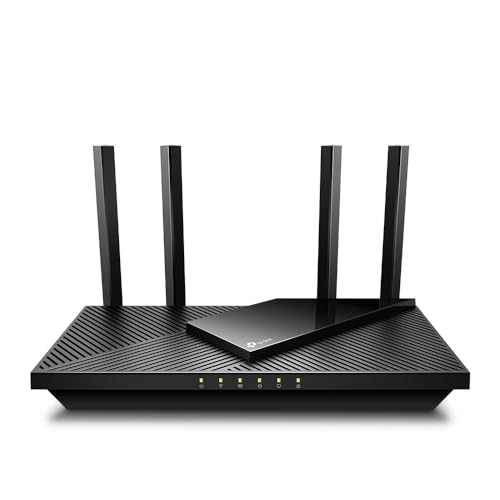
TP-Link AX1800 WiFi 6 Router V4 (Archer AX21)

The TP-Link Archer AX21 V4 is a fantastic all-rounder for anyone looking to upgrade to Wi-Fi 6 without breaking the bank. It really stands out with its robust security features, including both OpenVPN and PPTP VPN server support, offering an extra layer of privacy and control over your network. With its Beamforming technology and four high-gain antennas, this router excels at extending reliable Wi-Fi coverage across a wide area, making it ideal for multi-room homes where consistent signal strength is key.
- VPN SERVER: Supports both Open VPN Server and PPTP VPN Server
- DUAL-BAND WIFI 6 ROUTER: Wi-Fi 6(802.11ax) technology for faster speeds and greater capacity (AX1800: up to 1200 Mbps on 5 GHz, 574 Mbps on 2.4 GHz)
- CONNECT MORE DEVICES: OFDMA technology allows simultaneous data transmission to multiple devices
- EXTENSIVE COVERAGE: Beamforming, 4 high-gain antennas, and an advanced front-end module (FEM) chipset for strong, reliable WiFi
- OUR CYBERSECURITY COMMITMENT: TP-Link is a signatory of CISA’s Secure-by-Design pledge
- WORKS WITH ALL INTERNET SERVICE PROVIDERS: Compatible with major ISPs like Comcast, AT&T, Verizon, Xfinity, etc.
Pros:
– Excellent security features with built-in VPN server support
– Good coverage and range thanks to Beamforming and strong antennas
– Wi-Fi 6 technology provides efficient performance for multiple devices
– Easy to set up and manage via the Tether app
– Reliable performance for streaming, gaming, and downloading
Cons:
– Dual-band only, does not support the newer 6 GHz band
– AX1800 speed might not be sufficient for the most demanding ultra-high-speed internet plans (1Gbps+)
User Impressions:
Customers frequently praise the Archer AX21 for its reliable performance and solid Wi-Fi 6 capabilities at an accessible price point. Many users find it easy to set up and appreciate the improved range and stability compared to older routers. The VPN server feature is a welcome bonus for those seeking enhanced privacy.
NETGEAR Nighthawk 6-Stream Dual-Band WiFi 6 Router (RAX54S)

The NETGEAR Nighthawk RAX54S is a powerhouse designed for homes with lots of devices and demanding online activities like HD video gaming and web conferencing. What truly sets it apart is its impressive coverage of up to 2,500 sq. ft. for up to 25 devices, combined with the comprehensive NETGEAR Armor security suite (1-year subscription included). This router not only delivers blistering AX5400 Gigabit speeds but also actively protects your entire home network and connected devices from cyber threats.
- Coverage up to 2,500 sq. ft. for up to 25 devices
- Fast AX5400 Gigabit speed with WiFi 6 technology for uninterrupted streaming, HD video gaming, and web conferencing
- NETGEAR routers have security features enabled out of the box with automatic firmware updates and industry-leading safety features
- Compatible with any internet service provider up to 1Gbps
- 4 x 1 Gig Ethernet ports and 1 USB 3.0 port for wired connections
- NETGEAR Armor provides an automatic shield of security for your WiFi and connected devices (PC, phone, camera, TV, baby monitor, etc.) with real-time protection and VPN (1-year subscription included)
- Easily set up and manage your WiFi with the Nighthawk app
Pros:
– Exceptional speed and coverage for large homes and numerous devices
– Robust cybersecurity protection with NETGEAR Armor (initial subscription included)
– Ample Gigabit Ethernet ports and a USB 3.0 port for versatile connectivity
– Easy setup and management via the intuitive Nighthawk app
– Ideal for high-bandwidth activities like 4K streaming and competitive online gaming
Cons:
– NETGEAR Armor becomes a paid subscription after the first year
– Made for use in the U.S. only
User Impressions:
Users consistently highlight the RAX54S’s impressive speed and stability, making it a go-to for heavy internet users and gamers. The extensive coverage often eliminates dead zones, and the Nighthawk app receives praise for its user-friendliness. The added security from NETGEAR Armor is a significant selling point for many, providing peace of mind.
NETGEAR WiFi 6 Router (R6700AXv3)

For those looking to step into the world of Wi-Fi 6 without overspending, the NETGEAR R6700AXv3 is an excellent choice. This router stands out as a reliable and secure entry-level Wi-Fi 6 option, perfect for medium-sized homes with a moderate number of devices. It offers a solid AX1800 Gigabit speed, ensuring smooth streaming and gaming, and importantly, comes with NETGEAR’s built-in security measures and automatic firmware updates to keep your network protected.
- Coverage up to 1,500 sq. ft. for up to 20 devices
- Fast AX1800 Gigabit speed with WiFi 6 technology for uninterrupted streaming, HD video gaming, and web conferencing
- NETGEAR devices come with security measures built-in as well as enhanced safety features and updates
- Compatible with any internet service provider up to 1 Gbps
- 4 x 1 Gig Ethernet ports for computers, game consoles, streaming players, storage drive, and other wired devices
Pros:
– Affordable entry point into Wi-Fi 6 technology
– Good coverage and speed for typical household needs (medium homes, 15-20 devices)
– Built-in security features and automatic updates for peace of mind
– Reliable wired connectivity with four Gigabit Ethernet ports
– Easy to install and get running
Cons:
– Less extensive coverage and speed compared to higher-end Wi-Fi 6 models
– Lacks advanced features like USB ports or comprehensive security suites found in premium Nighthawk models
User Impressions:
Customers upgrading from older Wi-Fi 5 routers often report a noticeable improvement in speed and stability with the R6700AXv3. It’s frequently praised for being a “no-frills, gets-the-job-done” kind of router, offering great value for its price. Users find it simple to set up and appreciate its consistent performance for daily tasks.
TP-Link AC1200 WiFi Router (Archer A54)

The TP-Link Archer A54 is a remarkably versatile and budget-friendly option, perfect for smaller homes, apartments, or as an access point in a larger network. Its standout features include robust WPA3 security, which provides enhanced protection for your personal network, and its EasyMesh compatibility. This means you can easily expand your Wi-Fi coverage by pairing it with other EasyMesh devices, creating a seamless whole-home mesh network without buying an entirely new system.
- Simultaneous 2.4GHz 300 Mbps and 5GHz 867 Mbps connections for 1200 Mbps of total available bandwidth
- 4 external antennas provide stable wireless connections and optimal coverage
- Supports IGMP Proxy/Snooping, Bridge and Tag VLAN to optimize IPTV streaming
- Access Point Mode – Transforms your wired connection into a wireless network
- Advanced Security with WPA3 – The latest Wi-Fi security protocol for improved cybersecurity
- Expand your WiFi Coverage with EasyMesh Compatibility – Easily create a Mesh network for seamless whole-home coverage
- Easy network management at your fingertips with the TP-Link Tether app
- Works with all internet service providers (modem required)
Pros:
– Very affordable, offering great value for its features
– Advanced WPA3 security for a safer network
– EasyMesh compatibility allows for future expansion into a mesh system
– Versatile with Access Point Mode and IPTV optimization
– Good coverage for its price point, especially with external antennas
Cons:
– Not Wi-Fi 6, meaning lower overall speeds and less efficiency compared to newer AX models
– Best suited for basic to moderate internet usage, not high-demand gaming or 4K streaming on multiple devices
User Impressions:
Many users commend the Archer A54 for its excellent value, ease of setup, and reliable performance for everyday tasks like browsing, email, and standard streaming. The WPA3 security and EasyMesh compatibility are often highlighted as significant advantages for a router in its price category, making it a popular choice for cost-conscious consumers.
TP-Link AXE5400 Tri-Band WiFi 6E Router (Archer AXE75)

Step into the future of Wi-Fi with the TP-Link Archer AXE75, a cutting-edge Tri-Band WiFi 6E router that’s built for speed, capacity, and minimal latency. Its defining feature is the brand new 6 GHz band, which operates free from the congestion of older Wi-Fi bands, delivering blazing-fast speeds and near-zero latency—perfect for demanding applications like VR gaming and 8K streaming. Coupled with a powerful 1.7 GHz Quad-Core CPU and 512 MB of high-speed memory, this router ensures smooth performance even with numerous devices connected simultaneously.
- Tri-Band WiFi 6E Router – Up to 5400 Mbps WiFi for faster browsing, streaming, gaming, and downloading (6 GHz: 2402 Mbps; 5 GHz: 2402 Mbps; 2.4 GHz: 574 Mbps)
- WiFi 6E Unleashed – The brand new 6 GHz band brings more bandwidth, faster speeds, and near-zero latency
- Connect More Devices—True Tri-Band and OFDMA technology increase capacity by 4 times
- More RAM, Better Processing – Armed with a 1.7 GHz Quad-Core CPU and 512 MB High-Speed Memory
- OneMesh Supported – Creates a OneMesh network by connecting to a TP-Link OneMesh Extender
- VPN Server and Client: Supports both VPN Server and VPN Client (OpenVPN/PPTP/L2TP)
- TP-Link HomeShield – Premium security service with basic network and IoT protection, parental controls, QoS, and reports (free features)
Pros:
– Future-proof with the inclusion of the uncongested 6 GHz WiFi 6E band
– Exceptional speeds and ultra-low latency ideal for gaming, VR, and high-bandwidth applications
– Powerful quad-core CPU and ample memory ensure smooth performance with many devices
– Robust security features via TP-Link HomeShield and comprehensive VPN support
– OneMesh compatibility for seamless whole-home coverage expansion
Cons:
– Higher price point compared to Wi-Fi 6 or Wi-Fi 5 routers
– Requires WiFi 6E compatible devices to fully take advantage of the 6 GHz band
User Impressions:
Early adopters and tech enthusiasts rave about the AXE75’s incredible speed and the noticeable difference the 6 GHz band makes for compatible devices, calling it a “game-changer.” Users appreciate its ability to handle multiple bandwidth-intensive tasks without a hitch, and the powerful hardware ensures a stable and responsive network. While an investment, many consider it well worth it for future-proofing their home network.
Conclusion
Finding the best location for wifi router is arguably as important as choosing the right router itself. By understanding how Wi-Fi signals work and strategically placing your device, you can transform your home internet experience from frustrating to fantastic. Remember to aim for a central, elevated position, keep it away from obstructions, and consider using a Wi-Fi analyzer to fine-tune your setup.
Whether you’re looking for an affordable upgrade like the TP-Link Archer A54 or a future-proof powerhouse like the TP-Link Archer AXE75 with its cutting-edge 6 GHz band, there’s a router out there for every need and budget. The NETGEAR Nighthawk RAX54S offers a great balance of speed, coverage, and security, while the TP-Link Archer AX21 and NETGEAR R6700AXv3 provide excellent Wi-Fi 6 entry points.
Ultimately, a well-placed, modern router will give you the reliable, fast internet you deserve. So, take a moment, re-evaluate your router’s spot, and enjoy a smoother, more connected home!
FAQ
Q1: Where is the absolute best location for a Wi-Fi router?
A1: The absolute best location for a Wi-Fi router is typically in the most central part of your home, elevated and away from large metal objects, thick walls, and major appliances. This allows the signal to spread evenly throughout your living space.
Q2: Can placing my router near a window improve the signal?
A2: While a window might offer less obstruction than a thick interior wall, placing a router near a window can sometimes send more of your Wi-Fi signal outside your home rather than throughout it. A central interior location is generally preferred.
Q3: Do I need to place my router next to my modem?
A3: Yes, your Wi-Fi router must be connected to your modem via an Ethernet cable. So, while you can’t place the router miles away from the modem, you can often use a longer Ethernet cable (up to 328 feet or 100 meters) to position the router more centrally within your home.
Q4: What types of household items interfere with Wi-Fi signals?
A4: Common culprits include thick concrete or brick walls, large metal objects (like filing cabinets or refrigerators), mirrors, fish tanks, and electronics that emit radio waves (like microwaves, cordless phones, and even some smart home devices).
Q5: How can I check my Wi-Fi signal strength in different rooms?
A5: You can use free Wi-Fi analyzer apps available for smartphones (e.g., WiFi Analyzer for Android, Network Analyzer Lite for iOS) or software for your computer. These tools provide a visual representation of your signal strength and can help identify dead zones.
Q6: Should I place my router’s antennas straight up or at an angle?
A6: If your router has multiple external antennas, it’s often best to point them in different directions (e.g., one straight up, one at a 45-degree angle, another horizontally). This helps create a broader signal pattern, optimizing coverage in various directions.
Q7: Will upgrading my router improve my Wi-Fi if the placement is bad?
A7: A newer, more powerful router can certainly offer stronger signals and better performance, potentially mitigating some issues caused by suboptimal placement. However, even the best router will struggle if its signal is constantly blocked or interfered with. Optimal placement will always yield the best results, regardless of the router’s quality.
Q8: What is a Wi-Fi dead zone and how can I fix it?
A8: A Wi-Fi dead zone is an area in your home where the Wi-Fi signal is very weak or non-existent. You can fix it by finding the best location for wifi router (as discussed), using a Wi-Fi extender, a mesh Wi-Fi system, or by improving your router’s antenna orientation.
Q9: Can putting my router on the floor affect performance?
A9: Yes, placing your router directly on the floor is generally a bad idea. Floors, especially concrete, can absorb Wi-Fi signals. Elevating your router helps it broadcast over common household obstructions, significantly improving wireless performance.




Leave a Reply
You must be logged in to post a comment.